
Dynamics 365 + Power Apps practical series. This tutorial uses Dataverse as the shared data platform. Confirm the field names and lookup schema in your own environment before using formulas in production.
Business scenario
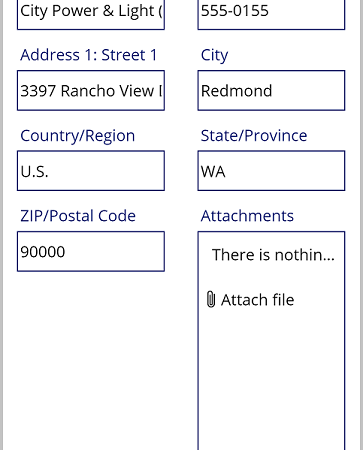
Add an Edit form named frmAccountEdit with DataSource Accounts and Item varSelectedAccount. For a new record call NewForm(frmAccountEdit); for editing call EditForm(frmAccountEdit). Save with SubmitForm(frmAccountEdit). In OnSuccess use Set(varSelectedAccount, frmAccountEdit.LastSubmit); Notify(“Account saved”, NotificationType.Success); Back(). In OnFailure show frmAccountEdit.Error. Do not navigate immediately after SubmitForm because saving is asynchronous. Test required fields and Dataverse privileges.
Implementation steps
Create or open a solution in the intended environment, add the required Dataverse tables as data sources, build the screen and controls, configure formulas, and test using a representative business-user security role.
Common pitfalls
Do not assume lookup fields are plain text, do not use client-side visibility as data security, and do not ignore delegation warnings or asynchronous save behavior.
Testing checklist
Test empty and populated records, permission boundaries, network failures, realistic data volumes, and the same operation in the Dynamics 365 model-driven app to confirm data consistency.
References
Microsoft Learn — Create a canvas app connected to Dataverse: https://learn.microsoft.com/en-us/power-apps/maker/canvas-apps/how-to/build-connected-dataverse