
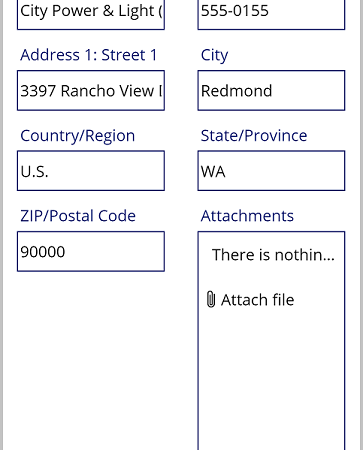
After a lead is created, sellers often need to correct contact details or update qualification information. This part shows a safe edit pattern that keeps Dataverse as the system of record.
1. Prefer an Edit form for typed columns
Insert an Edit form with DataSource set to Leads and Item set to the selected lead. Add only fields users are allowed to change. Use the form’s generated data cards for choices, lookups, dates, and other typed columns rather than treating every value as text.
// frmLeadEdit.DataSource
Leads

// frmLeadEdit.Item
varSelectedLead

// Edit button OnSelect
EditForm(frmLeadEdit);
Navigate(scrLeadEdit, ScreenTransition.Fade)

// Save button OnSelect
SubmitForm(frmLeadEdit)
2. Handle success and failure
// frmLeadEdit.OnSuccess
Set(varSelectedLead, frmLeadEdit.LastSubmit);
Notify("Lead updated.", NotificationType.Success);
ViewForm(frmLeadEdit);
Navigate(scrLeadDetails, ScreenTransition.Fade)

// frmLeadEdit.OnFailure
Notify(
    "Update failed: " & frmLeadEdit.Error,
    NotificationType.Error
)
3. Reset when the user cancels
// Cancel button OnSelect
ResetForm(frmLeadEdit);
ViewForm(frmLeadEdit);
Navigate(scrLeadDetails, ScreenTransition.None)
4. Avoid overwriting unrelated columns
If using Patch instead of a form, send only the columns the user is changing. Avoid building a record from stale values held in variables for every field; another process may have updated the lead since the screen opened. Dataverse security, plug-ins, business rules, and duplicate detection continue to run on the server.
5. Test real CRM behavior
- Change an email address and verify it in Dynamics 365.
- Try a value rejected by a business rule or plug-in.
- Update the record in CRM while the app is open, then test refresh and save behavior.
- Confirm read-only and secured columns are not editable for unauthorized users.